PatternScan
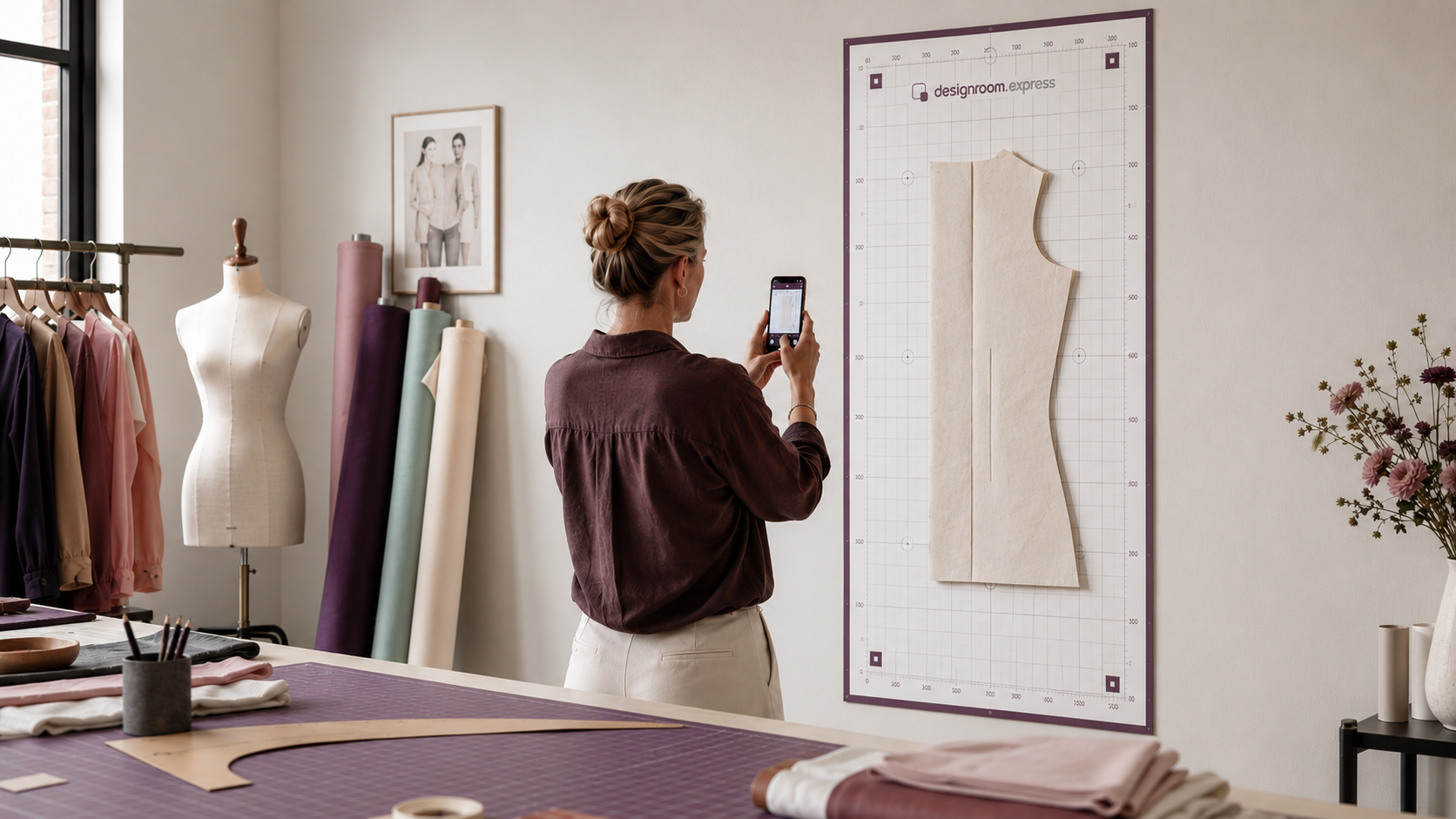
Part of the workflow in designroom.express. A designer affixes a large portrait-orientation PatternScan Digital Import Mat to the studio wall, positions a physical block or pattern piece on the mat, stands back at an appropriate distance, and photographs it with a phone camera to add it to the app.
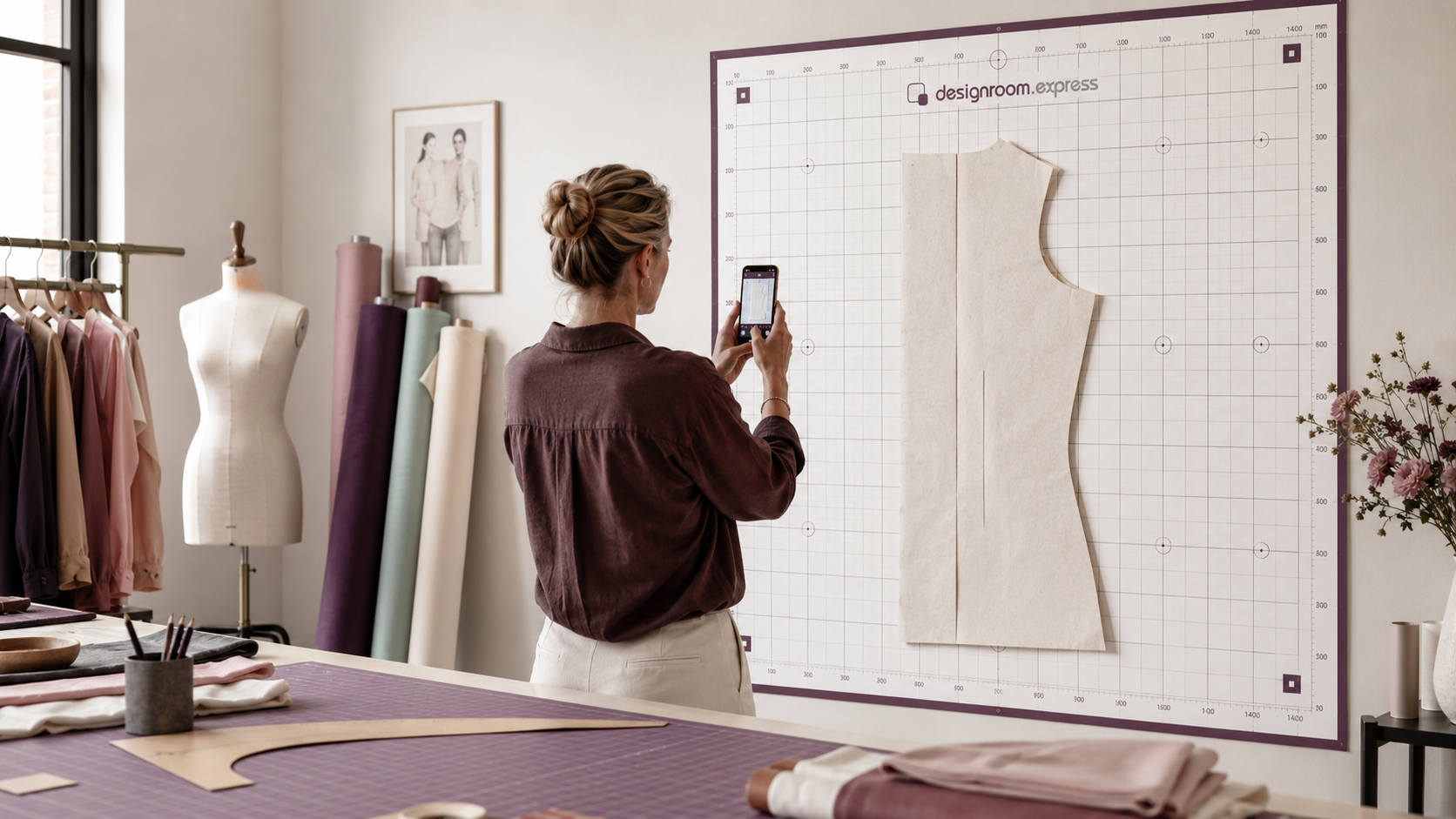
PatternScan workflow
Use a PatternScan Digital Import Mat to bring an existing paper Pattern or Block into designroom.express, review the result, and continue working with it in your Style.
Bring an existing paper Pattern or Block you already trust.
Pick the PatternScan Digital Import Mat sized for your studio.
Lay the piece flat and leave the mat's printed markers visible.
Capture the whole mat with your phone's rear camera.
PatternScan squares the photo and recovers the piece's true size.
Check the traced outline against your physical piece.
Approve it to add the Pattern to your library.
Build the Style and bring in Pattern Assistance.
Affix the large, portrait-oriented PatternScan Digital Import Mat to a clear wall in your studio. The mat carries printed markers at known positions and a printed grid for visual reference. It should be flat and well-lit.
The mat is designed to be left in place between sessions — mount it once and it becomes a permanent part of your digitising setup.
Place your physical block, pattern piece, or paper pattern directly on the Digital Import Mat. The piece should lie flat against the mat surface. Ensure the full mat and all markers remain visible around the piece.
Do not let the pattern piece obscure the corner markers — the platform needs all four corners of the mat visible in the photograph to calculate perspective correction.
Stand back at an appropriate distance so the entire mat — including all markers — fits within the camera frame. Use even lighting; avoid strong shadows or harsh direct light that could obscure the markers.
An iPhone rear camera or any phone/tablet rear camera works. The platform is designed for phone photography, not flatbed scanners or specialist equipment.
Upload the photograph into the designroom.express app. On a mobile device, you can also capture directly from the camera using the in-app camera workflow with rear-camera preference.
The upload accepts standard JPEG images. No special format or resolution is required — a typical phone photo is sufficient.
The platform runs automatic quality checks on the photograph: it verifies that all of the mat's markers are detected, that the calibration grid is visible, and that the image is not too dark, too bright, or too blurred.
If quality issues are found, you are told what went wrong and can re-photograph. The platform does not proceed with a poor scan — it asks you to try again.
Using the mat's printed markers, the app corrects the camera's angle and works out the piece's true size.
It then traces the outline of the pattern piece and proposes a digital version for you to check. This is a proposal, not a final result — it needs your review.
Review the proposed vector shape. Check that it matches your physical piece — the outline, the corners, the proportions. If it looks correct, approve it. If not, you can reject the proposal and re-photograph.
Nothing enters your pattern library without your approval. The platform proposes; the designer decides.
Important: PatternScan does not produce perfect automatic CAD output without review. The vector proposal is based on tracing the outline from a photograph, and it requires designer approval before it is saved. Some adjustments may be needed — that is by design. The designer remains in control of what enters the library.

Flatbed scanners require physical access, a flat surface, and careful positioning — and they cannot handle large pattern pieces. A wall-mounted Digital Import Mat works at any scale. You photograph the piece in situ, on the wall, with the phone you already carry.
The mat's ArUco markers — the printed reference marks — give the app known reference points, so it can measure the real size of the piece rather than estimate it. It is a measurement, not a guess.
Request access to try PatternScan with your own pattern pieces.
